Install and Set Up PC Matic VPN
PC Matic VPN (Virtual Private Network)
Select your device:
- Windows Computer (see below)
- Mac Computer
- Android Phone or Tablet
- iPhone or iPad
- Stand Alone VPN
PC Matic VPN: Windows Guide
Before setting up your VPN, ensure you have the necessary software installed on your device.
- PC Matic Antivirus Users: The VPN is built into PC Matic 5/6, if you already have it installed, please proceed to the next step. If you do not have PC Matic installed yet, please download it here: pcmatic.com/add-device
- VPN-Only Users: If you purchased the standalone VPN, please download the stand alone installer here: Stand Alone VPN
Sign in to PC Matic
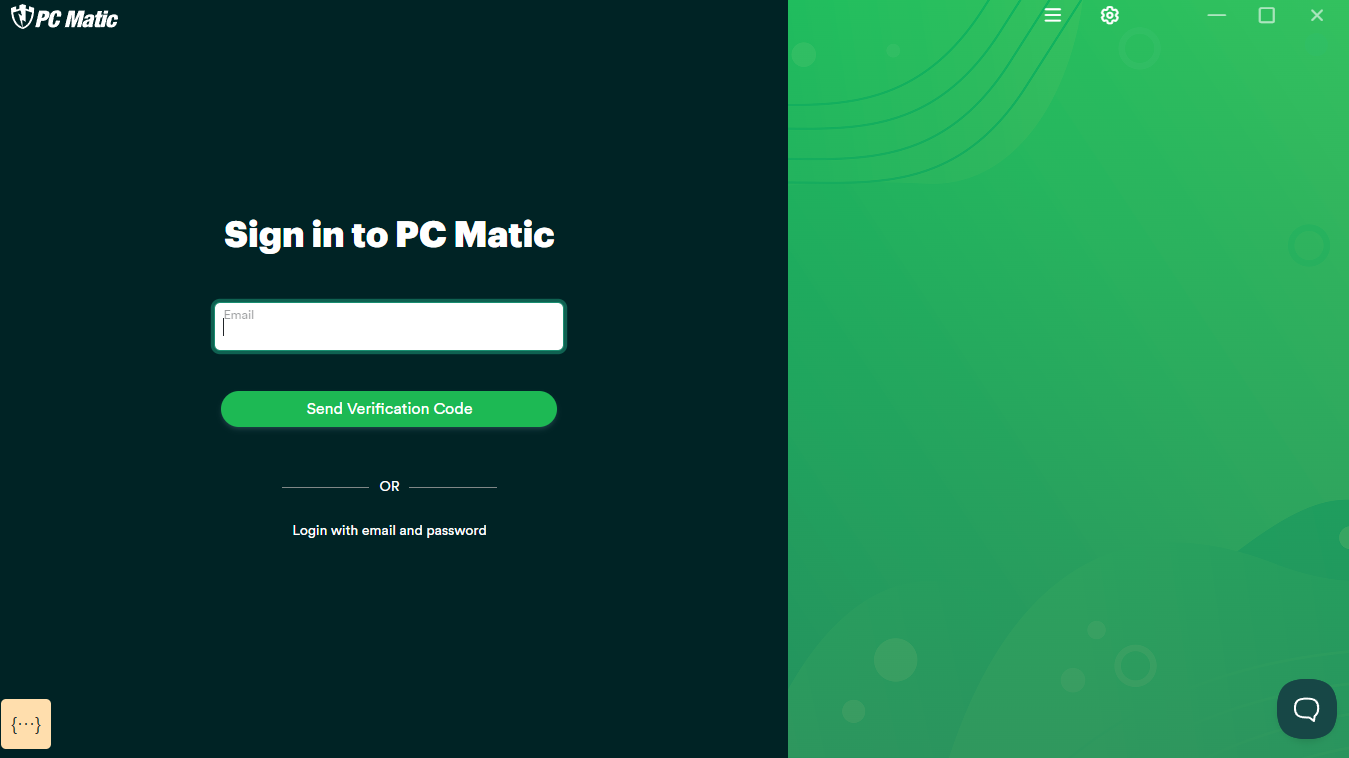
- After installing, open PC Matic.
- Enter the email address associated with your PC Matic account, click 'Send Verification Code'.
- Enter the verification code delivered to your inbox.
- Alternatively, click 'Login with email and password' and enter your credentials.
Getting Started with the VPN
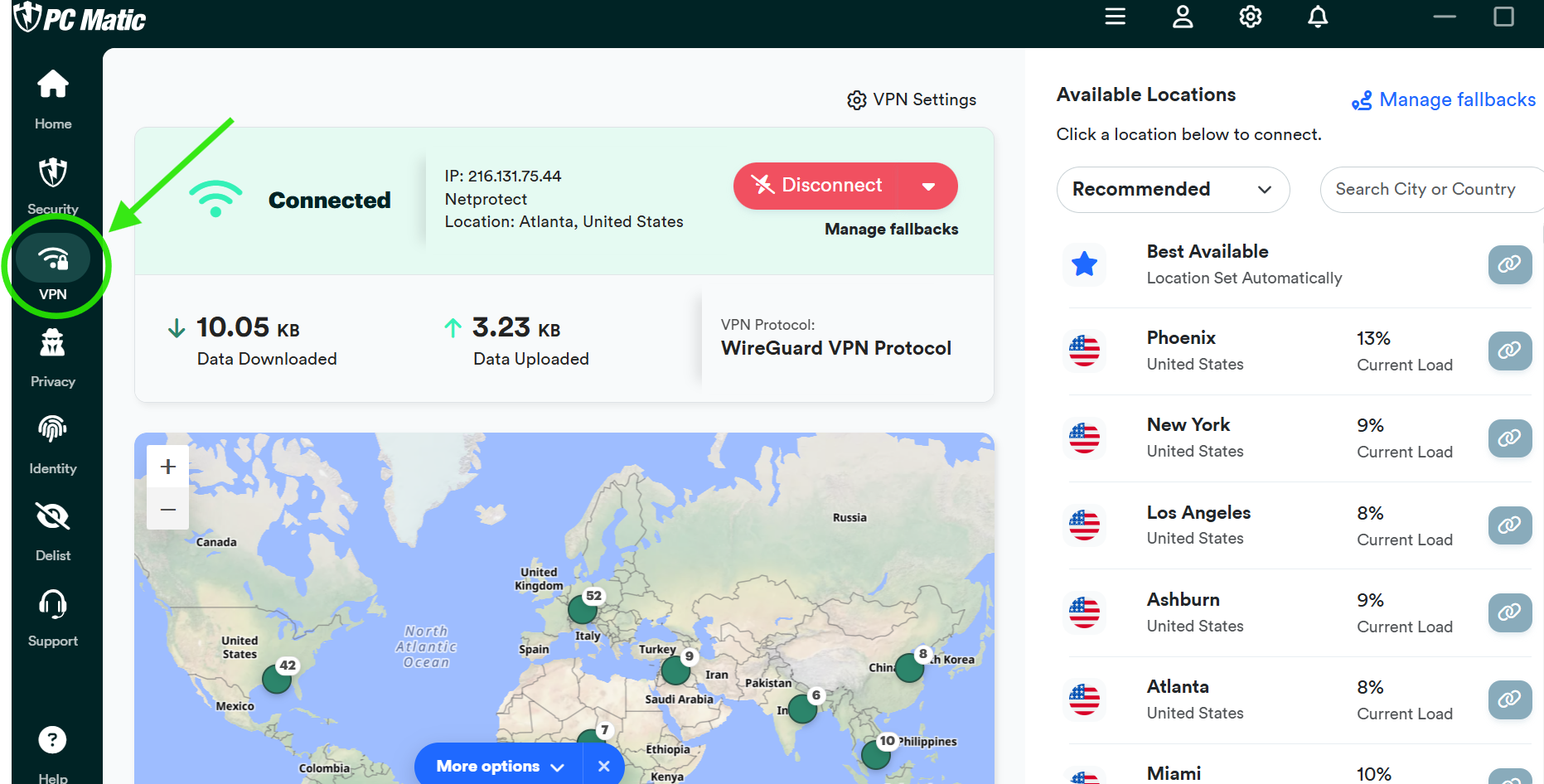
- Open PC Matic and select 'VPN' from the menu on the left.
- VPN settings are defaulted to automatically connect once you login. After a few seconds, you should see a red' 'Disconnect' button. That tells you you're connected.
- If your VPN does not automatically connect, click on the green 'Quick Connect' button. If you have trouble connecting, please visit our [VPN Connection Troubleshooting Page] for help.
Manually Select a PC Matic Server
By default, PC Matic will automatically connect you to the 'best available' location. If you prefer to manually select a location:
- Click on the server/location drop-down menu.
- Scroll or search for your desired country or city.
- Click the location to switch your connection.
Note: For most users, simply keeping the default settings and options provided by PC Matic is recommended. If you prefer advanced configurations, please continue reading below.
Managing Advanced VPN Settings
Helpful VPN Options
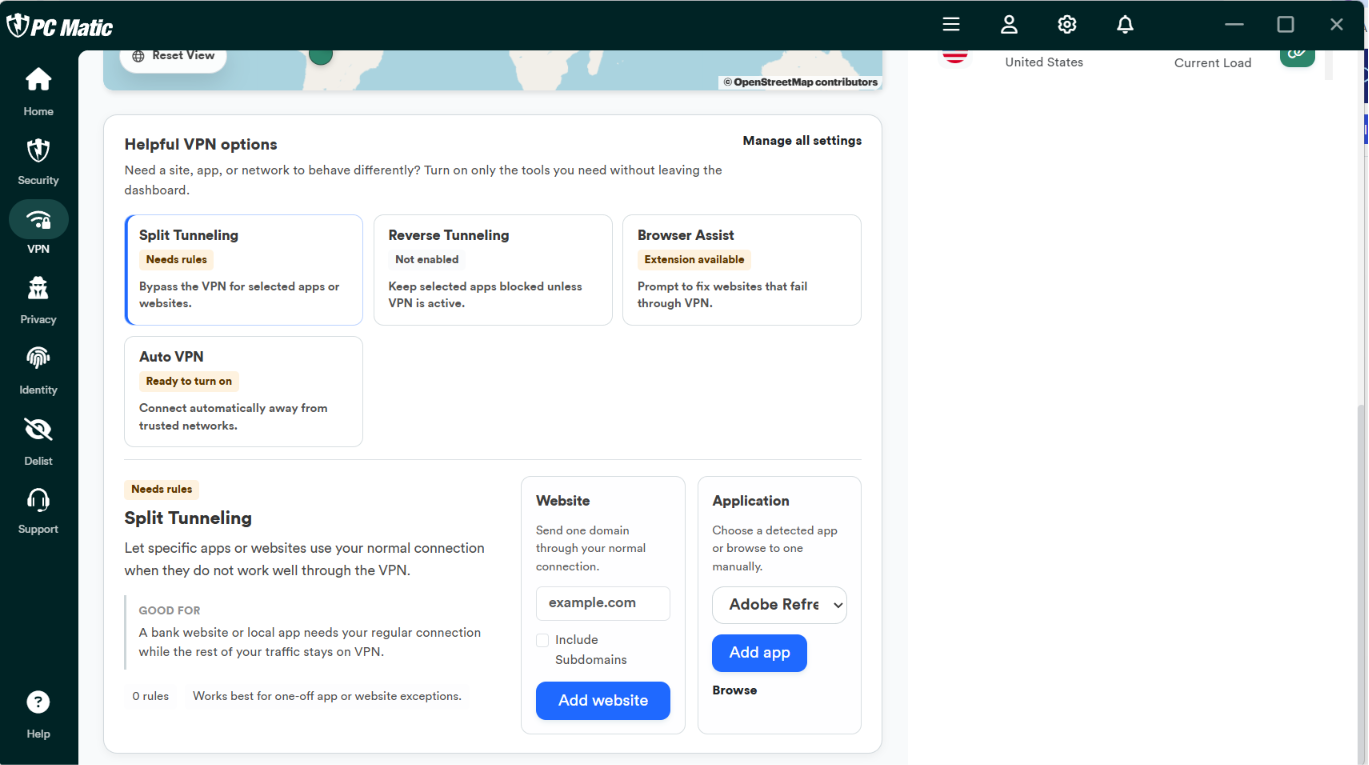
On the VPN tab, scroll down to view and configure these options:
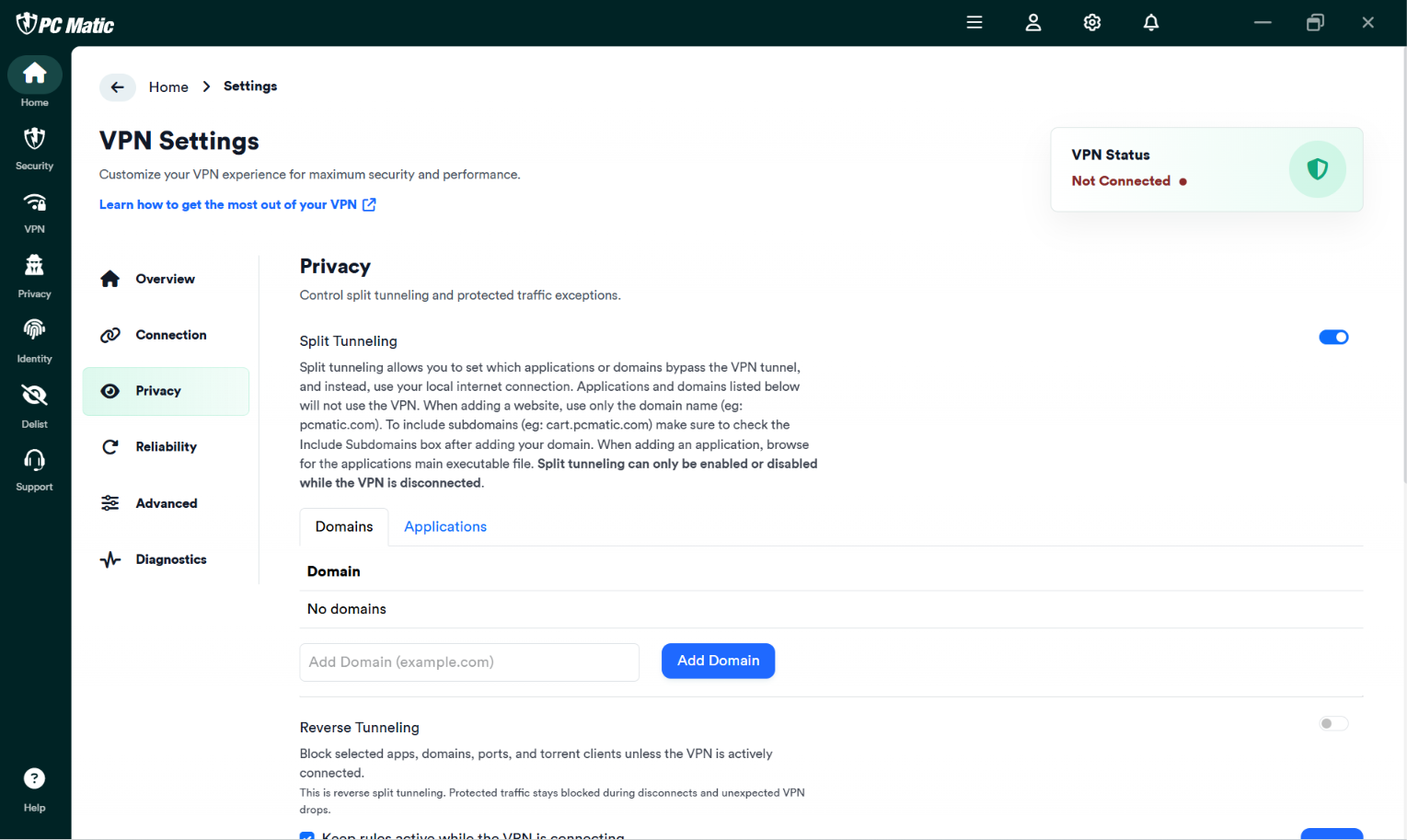
- Split Tunneling: Bypass the VPN for selected apps or websites. (Useful if a specific site or app won't load while connected to the secure tunnel).
- Reverse Tunneling (Stealth Only): Keep selected apps blocked unless the VPN is active. (A great security feature to ensure sensitive apps never leak data over an unsecured network).
- Browser Assist: Prompt to fix websites that fail through VPN. (Automatically helps resolve connection errors inside your web browser).
- Auto VPN: Connect automatically away from trusted networks. (Ensures you stay protected when connecting to public Wi-Fi or unfamiliar networks).
Customizing Your Routing Rules
To specify exactly which items utilize these features, you can filter your rules by Website or Application:
- Website (Domains): Allows you to apply settings (like Split Tunneling) to specific web addresses or URLs (e.g., huntingtonbank.com)
-
Application (Apps): Allows you to apply settings to specific software programs or executable files installed on your device (e.g., a specific web browser or a gaming application).
To adjust any of the rules and settings for these options, click on the 'Manage All Settings' link.
For more VPN options, scroll back to the top of the page and select 'VPN Settings'
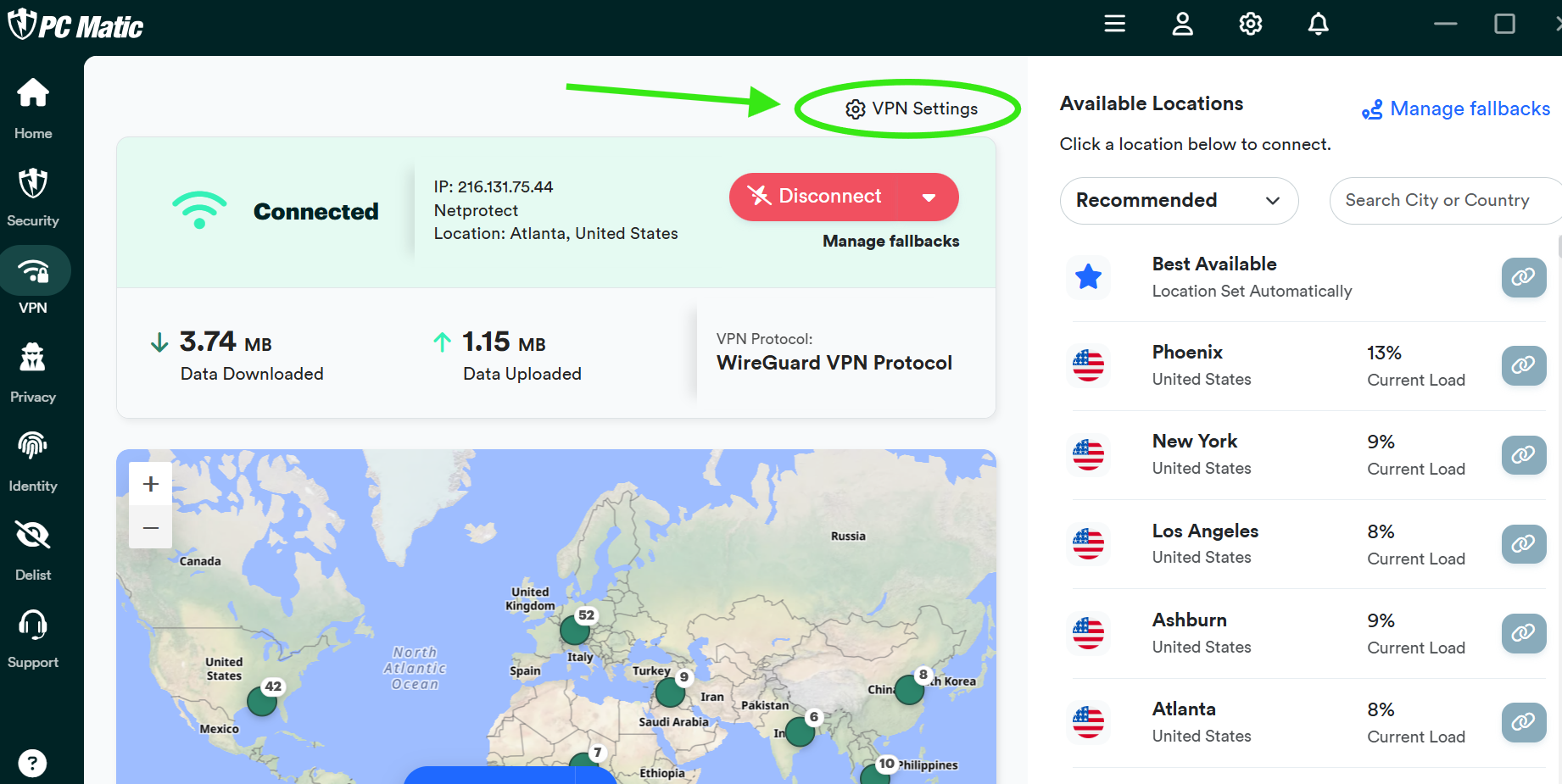
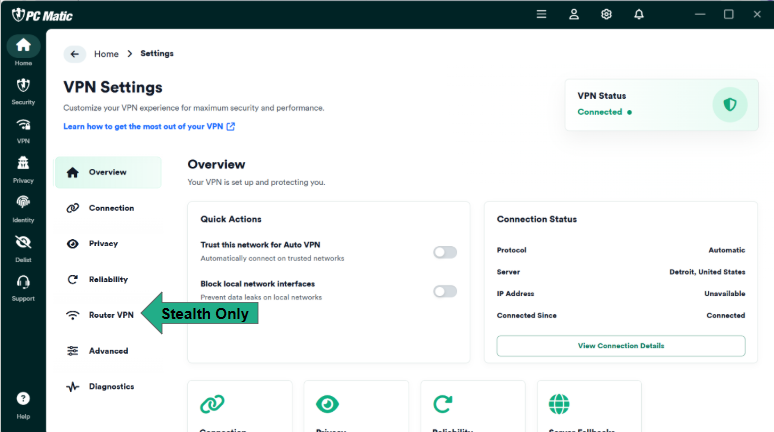
From the overview page, you can access and configure all aspects of your VPN. Click any of the categories below to jump directly to its settings:
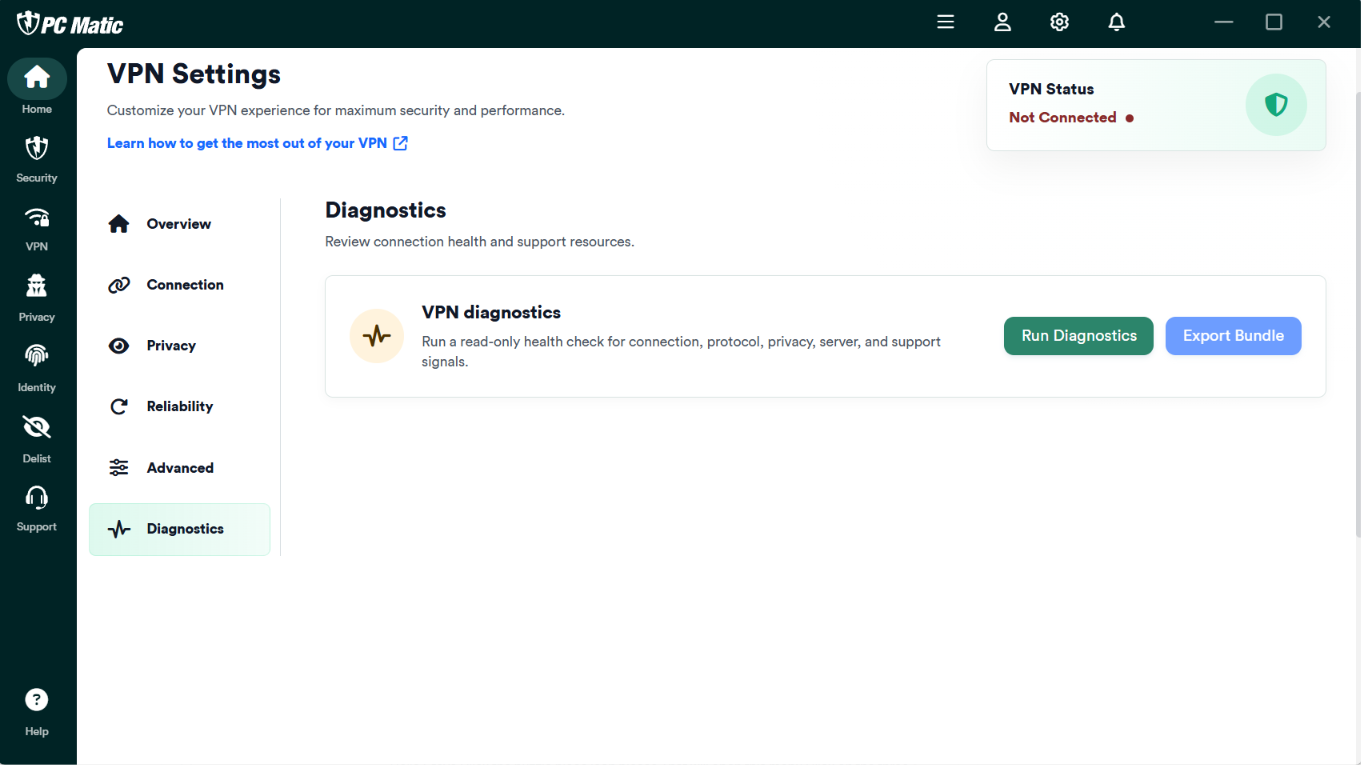
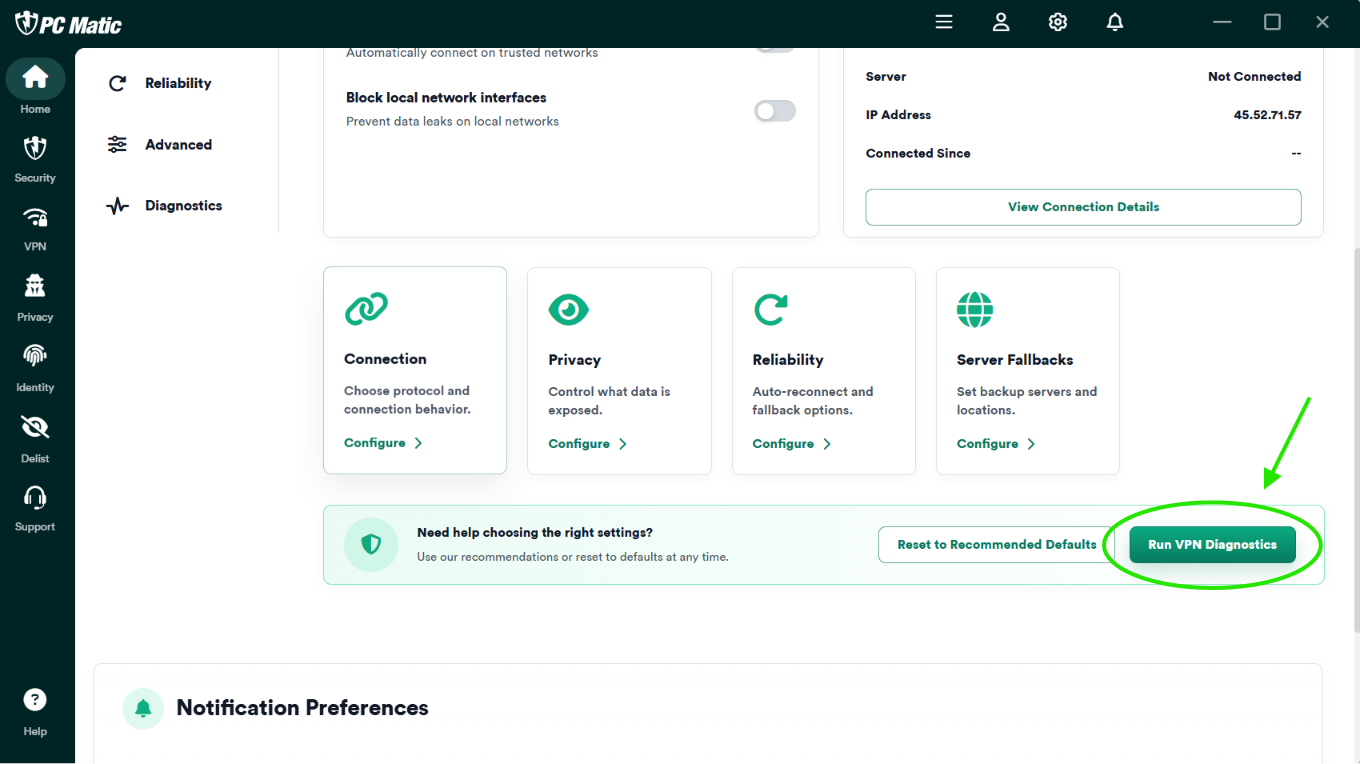
If you're not sure what settings you need, we can help! Scroll down a bit and click on the green 'run VPN diagnostics' button for recommendations.
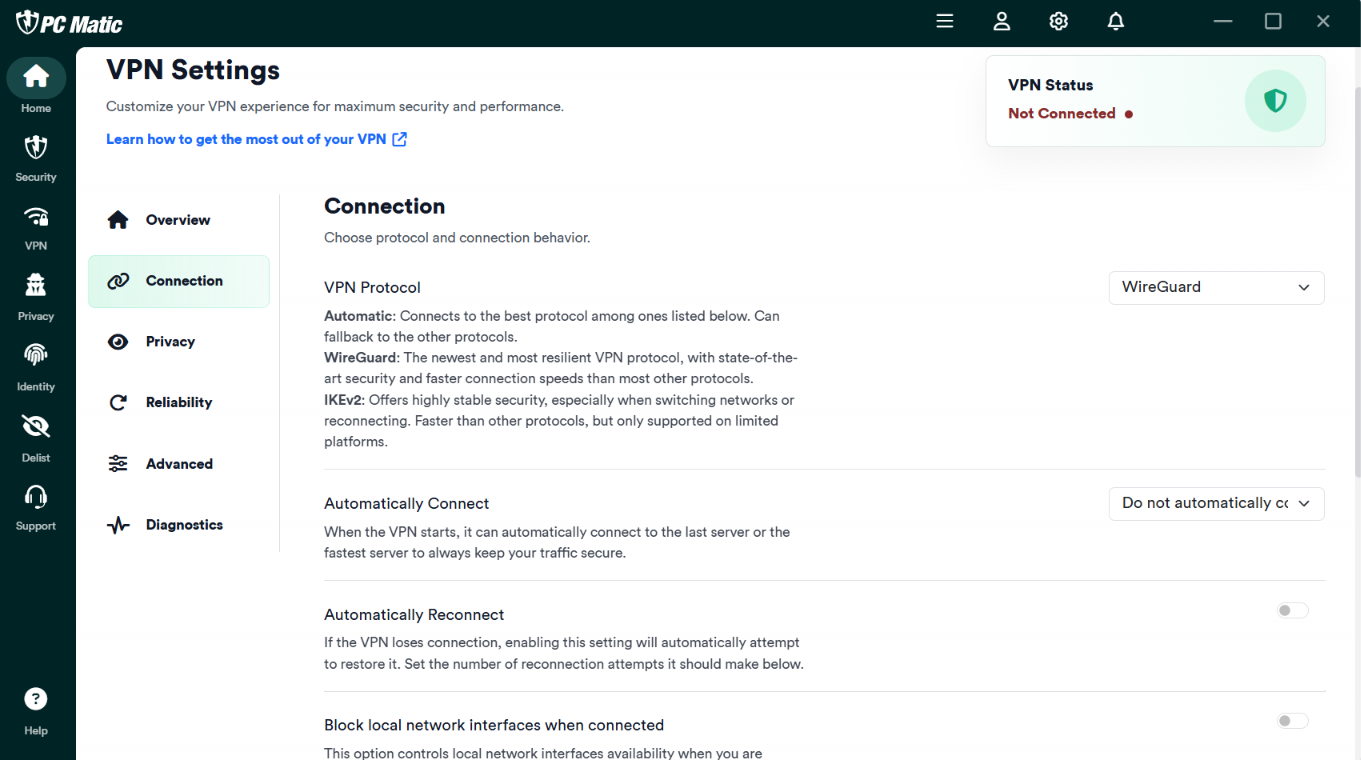
Connection - choose protocol and connection behavior.
Privacy - exclude or include specific apps and websites from your VPN tunnel.
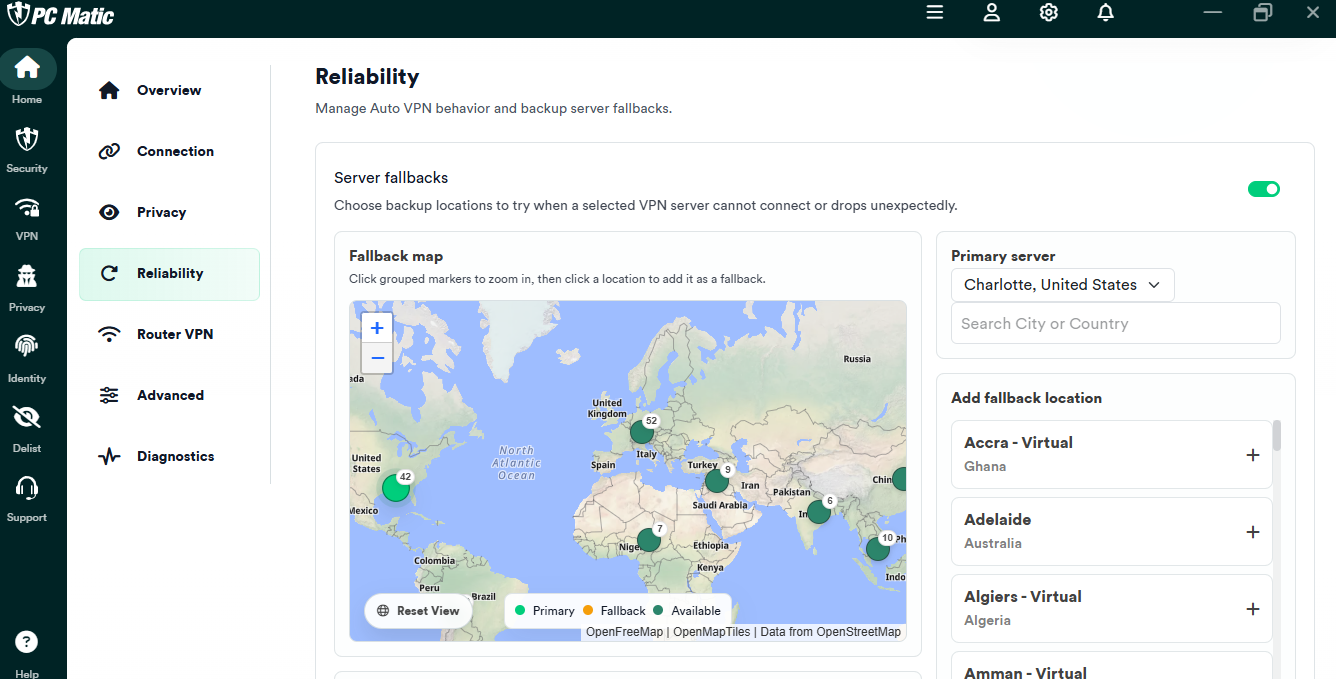
Reliability - manage backup server fallbacks and manage Auto VPN settings such as Trusted Zoning.
For detailed information on Trusted Zoning, CLICK HERE )
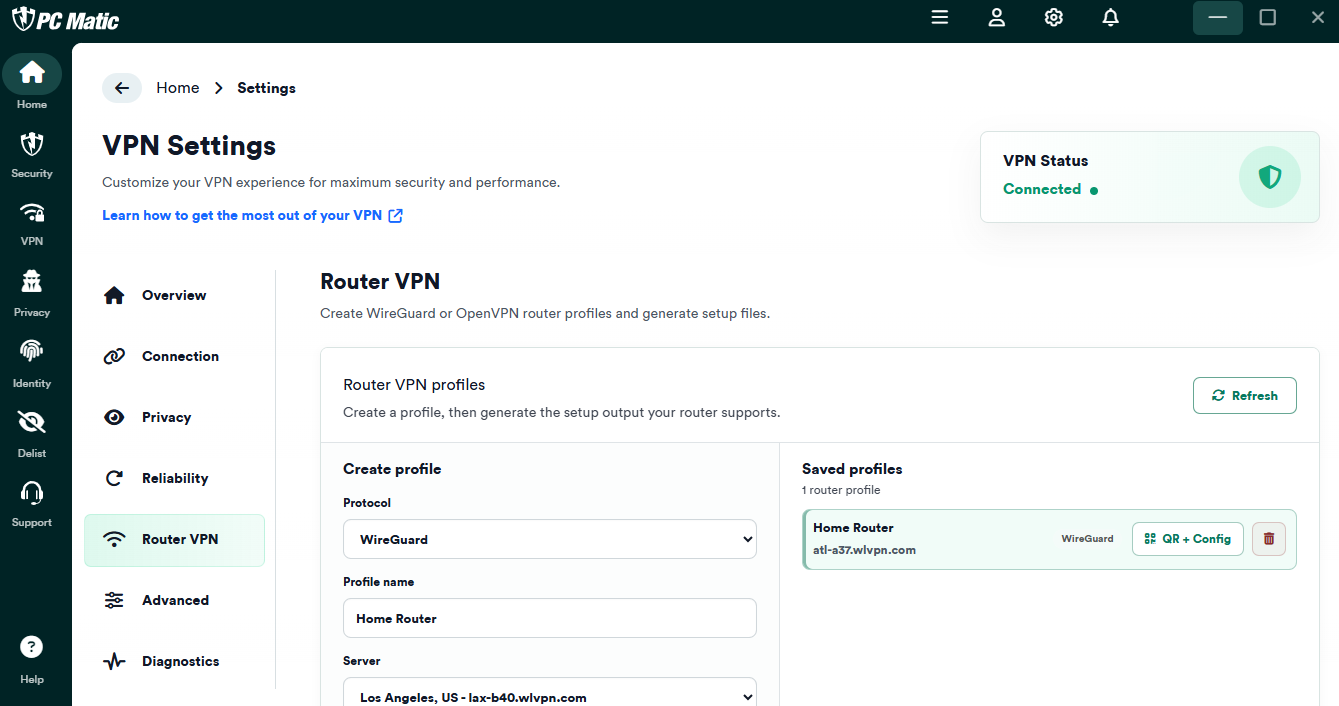
Router VPN - set up the PC Matic VPN on your home router. (Stealth Only).
For detailed instructions, CLICK HERE.
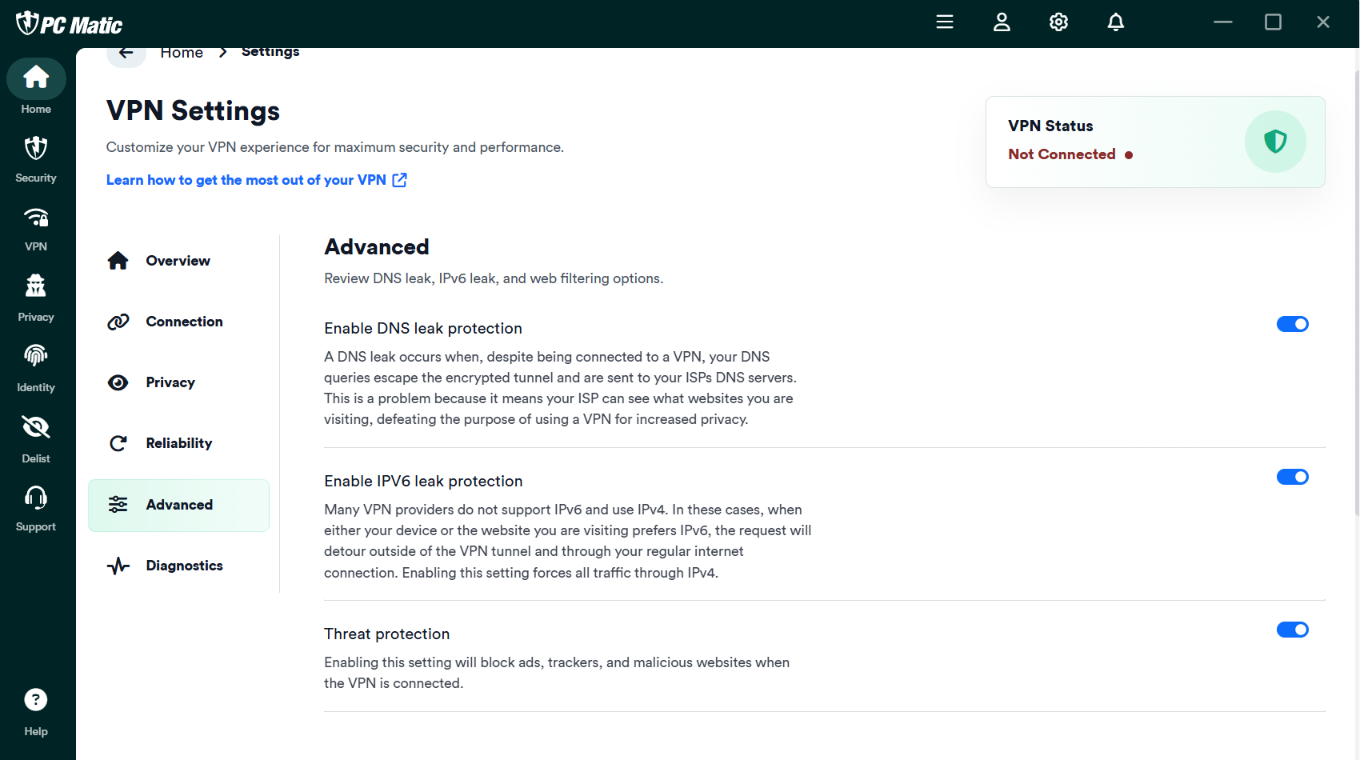
Advanced - enable DNS leak protection, IPV6 leak protection and threat protection.
Diagnostics - review connection health and receive setting recommendations when necessary.