
How to use PC Matic Free Tools
Malware / Country of Origin Scan
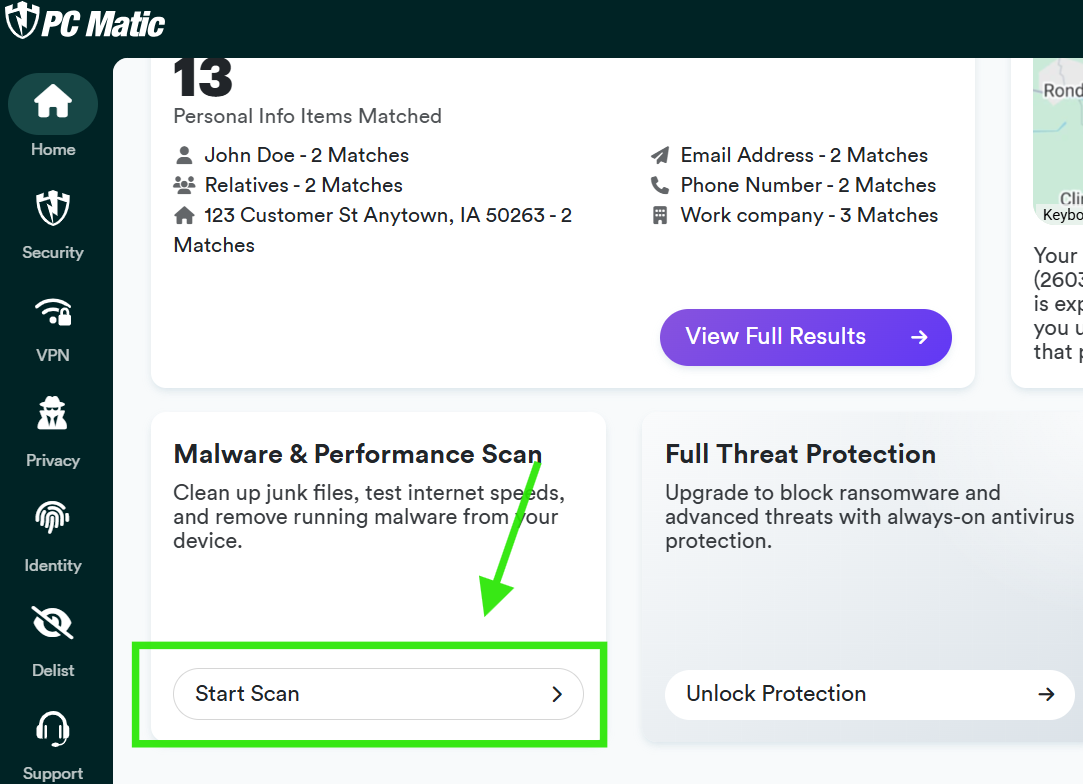
- To start the Free Scan, open PC Matic Free Tools, and click the Start Scan button on the Home tab.
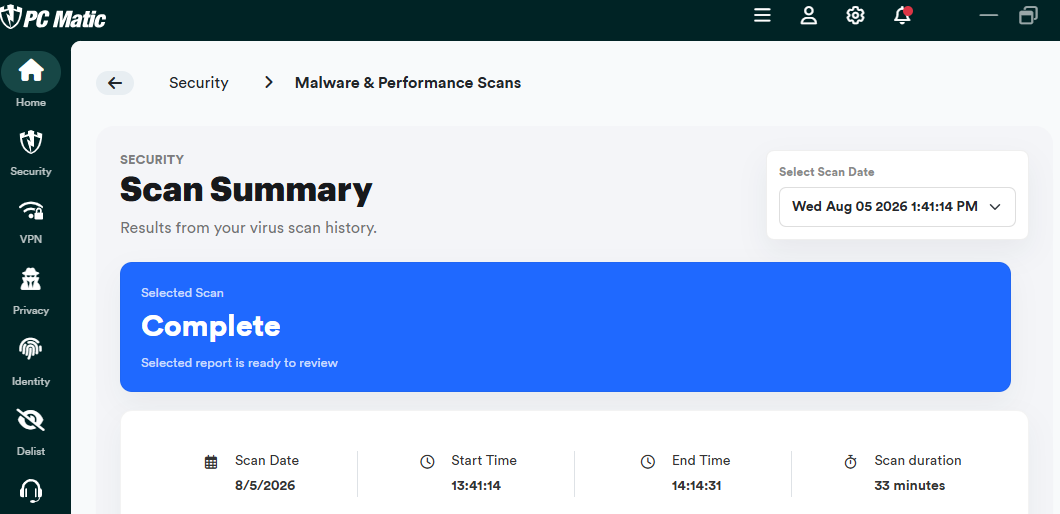
- Once the scan is completed you will see the results listed.
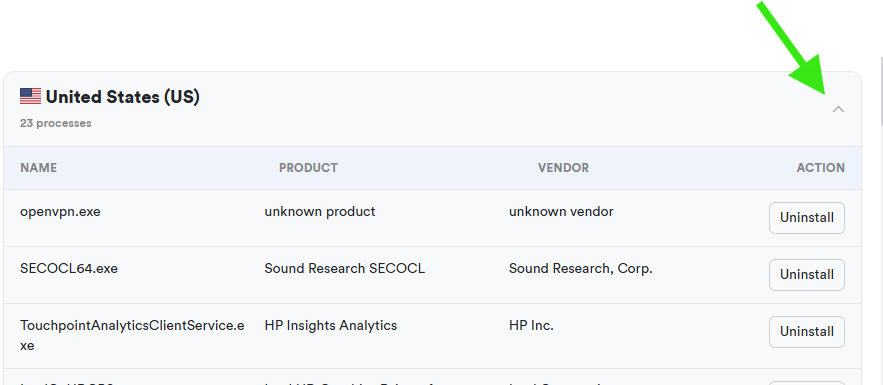
- The Free Software Origin scan results is the first item listed.
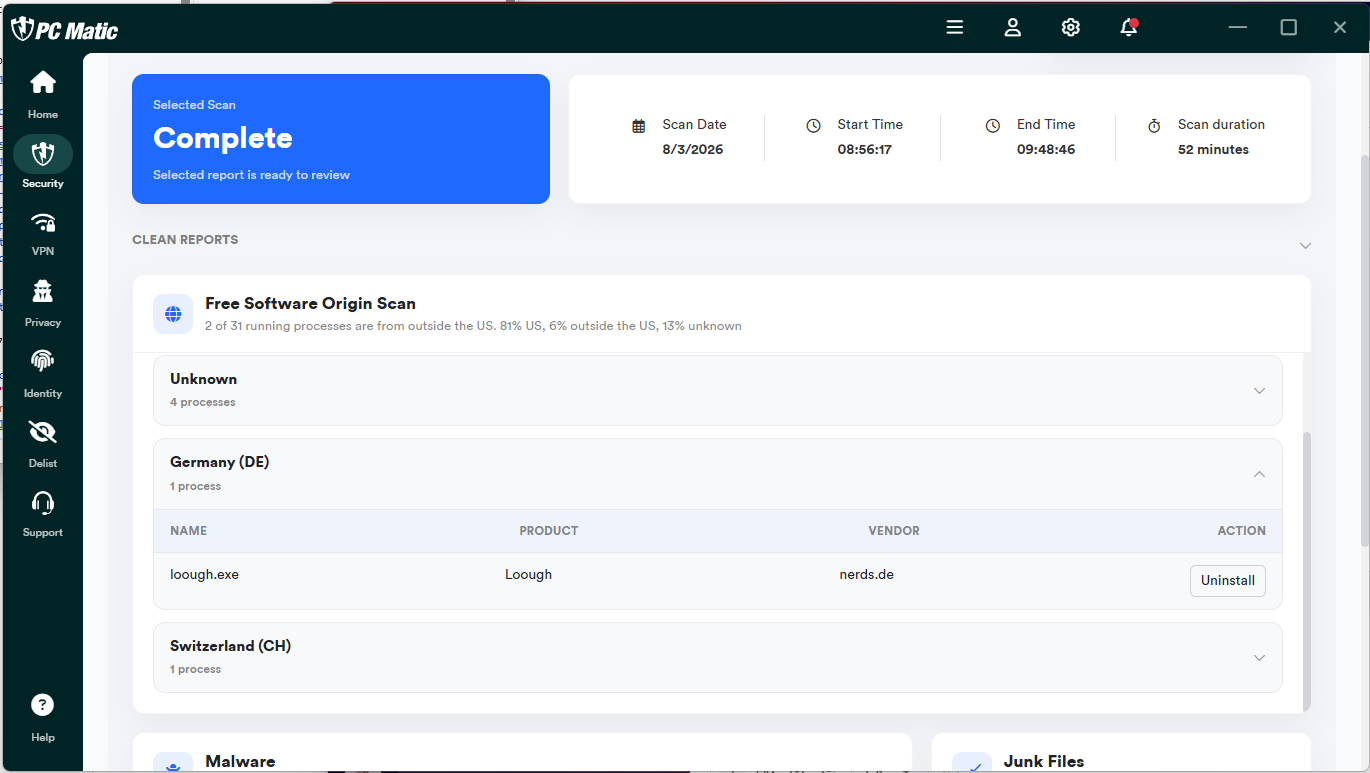
- The free scan will look at every running process on your machine and let you know where these files were signed.
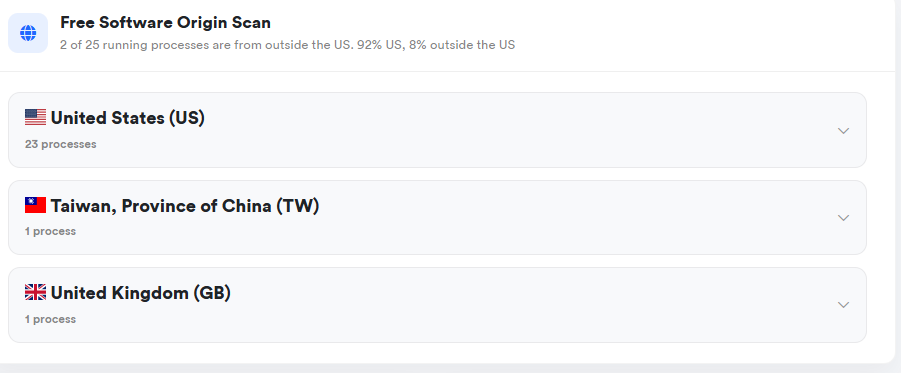
- Clicking on each country in the results area will show you what files originated there.
- The scan will also look for Malware and Junk Files. It will also look through your browser extensions to reveal any potentially unwanted or harmful add-ons.
(The scan will just identify Malware. You will need the Full Threat Protection to remove any malware found during the scan)
Free VPN
(Coming Soon)
PC Matic Ad Blocker and Scam Blocker
- Click the Browser Spam and Adblockers button on the Home tab of the PC Matic Free Tools app.
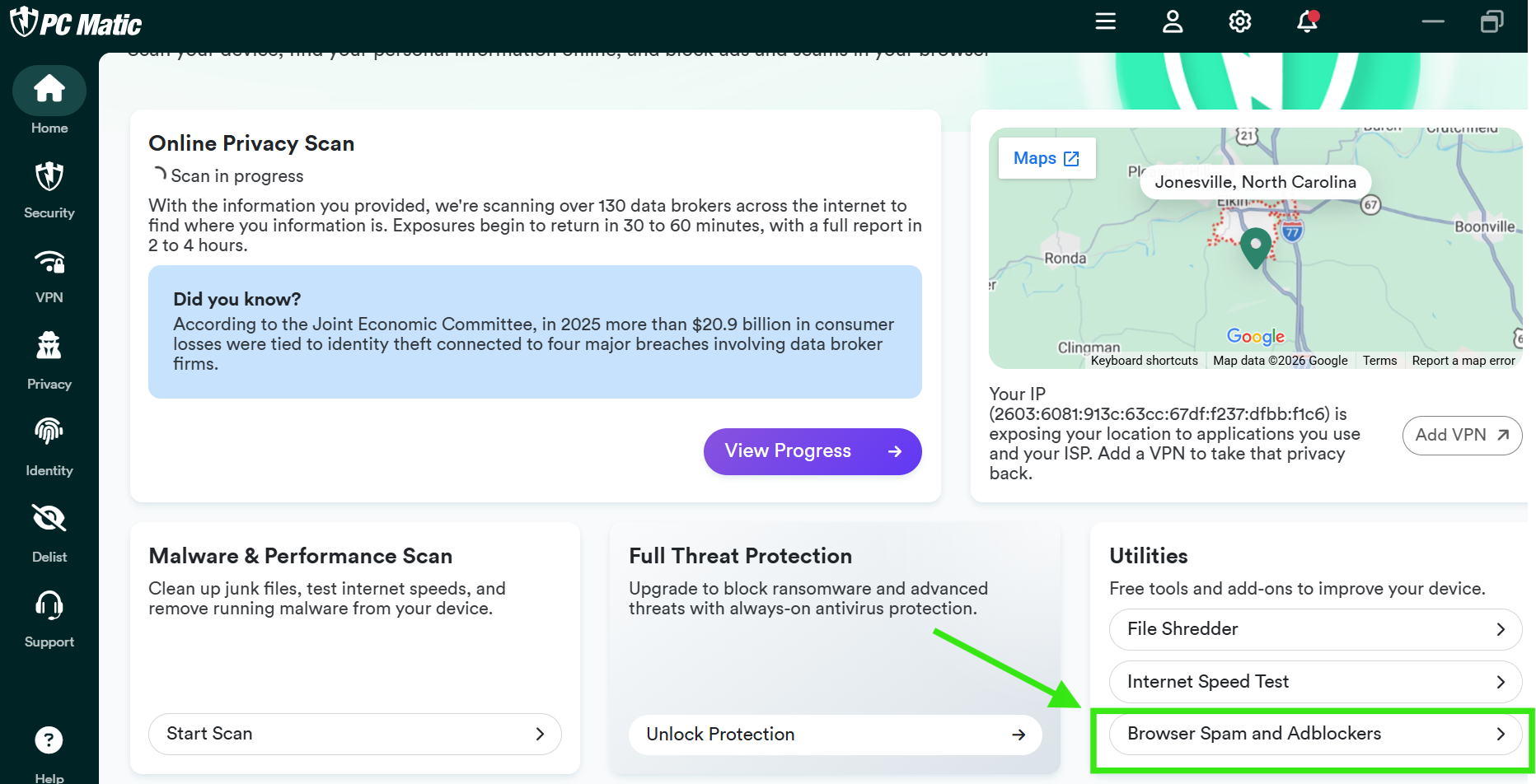
- Here you can choose to install the PC Matic Ad Blocker and the PC Matic Scam blocker for Chrome, Edge, and Firefox.
Ad Blocker
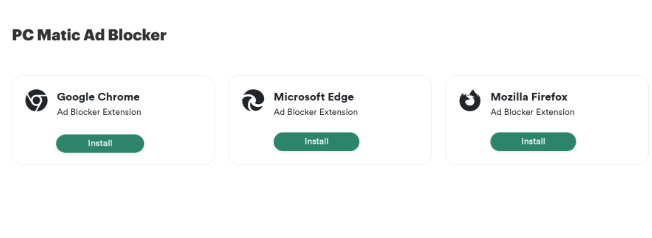
- Click the Install button associated with the browser you normally use when accessing the internet.
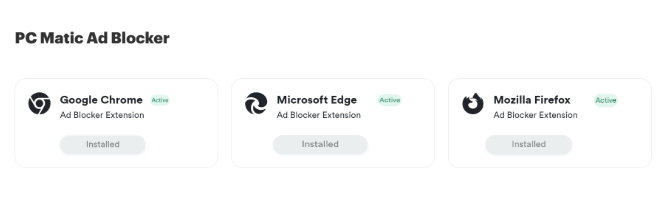
- If you see Installed and Active attached to the browser you normally use, PC Matic Ad Blocker is already running.
For Chrome
a. Click the Green Install button associated with the Chrome Browser
b. Click Add extension in the pop-up window.
c. After the installation is completed, the green shield will appear in the upper right corner. If you don’t see it, click the puzzle piece, and then click the pin to set it to always display.
d. After you’ve added the extension, you should see the green PC Matic shield in the upper right-hand corner of the Chrome Browser.
For Firefox
a. Click the green download button associated with the Firefox Browser.
b. In the popup, click the Add button.
c. After the installation is completed, the green shield will appear in the upper right corner. If you don’t see it, click the puzzle piece.
For Edge
a. Open the Edge Browser.
b. Access our ad blocker Here.
c. At the top right, click Get.
d. In the popup, click Add extension.
e. After you’ve turned on the extension, you should see the green PC Matic shield in the upper right-hand corner of the Edge Browser.
Scam Blocker
PC Matic Scam Blocker is designed to block malware links and protect users from potentially dangerous websites. This extension identifies and stops deceptive malware links that try to trick users into downloading malicious software, providing sensitive information, or making unwanted purchases. It operates seamlessly in the background, analyzing web traffic in real time and offering an additional layer of protection against phishing scams, adware, and other online threats. With its lightweight design and easy integration into major browsers, the extension ensures users can browse safely without disruption or fear of falling victim to scams.
For Chrome
a. Click the Green Install button associated with the Chrome Browser in the Scam Blocker Download area.
b. Click Add extension in the pop-up window.
c. After the installation is completed, the green shield will appear in the upper right corner. If you don’t see it, click the puzzle piece, and then click the pin to set it to always display.
d. After you’ve added the extension, you should see the green PC Matic shield in the upper right-hand corner of the Chrome Browser.
For Firefox
a. Click the Green Install button associated with the Firefox Browser in the Scam Blocker Download area.
b. In the popup, click the Add button.
c. After the installation is completed, the green shield will appear in the upper right corner. If you don’t see it, click the puzzle piece.
For Edge
a. Open the Edge browser.
b. Access our ad blocker from the Edge Add-ons page.
c. Click the Get button.
d. In the pop-up, click the Add extension button.
e. After the installation is completed, the green shield will appear in the upper right corner. If you don’t see it, click the puzzle piece.
File Shredder
- Click the File Shredder button under the Utilities heading on the PC Matic Free Tools Home tab.
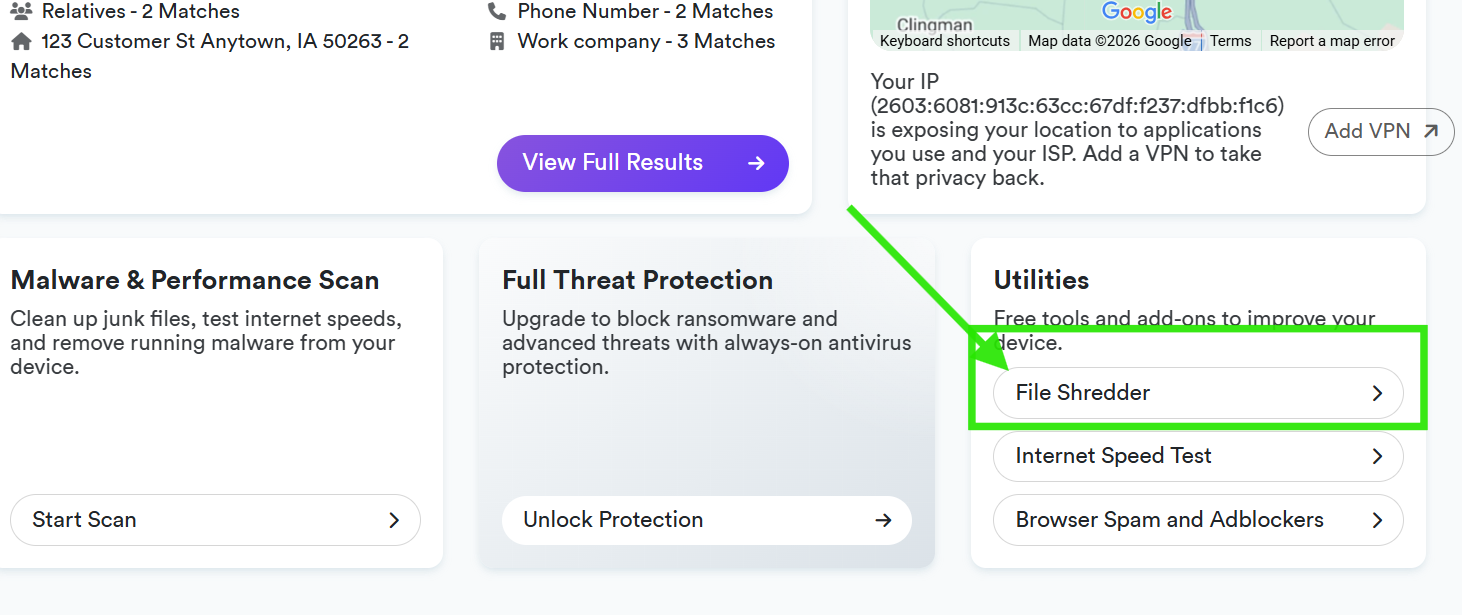
- Click the Browse button to find the file you wish to shred.
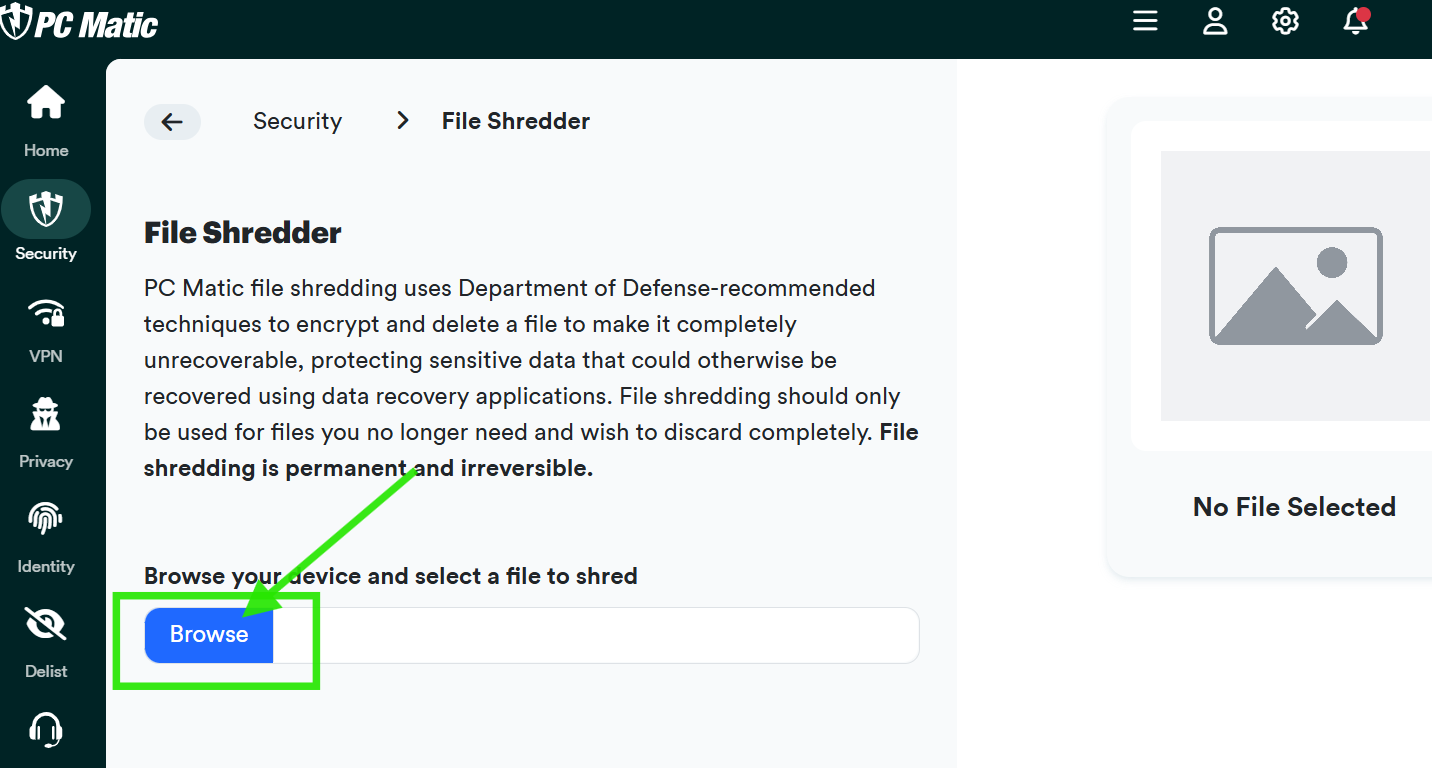
- Select the file and click the Open button.
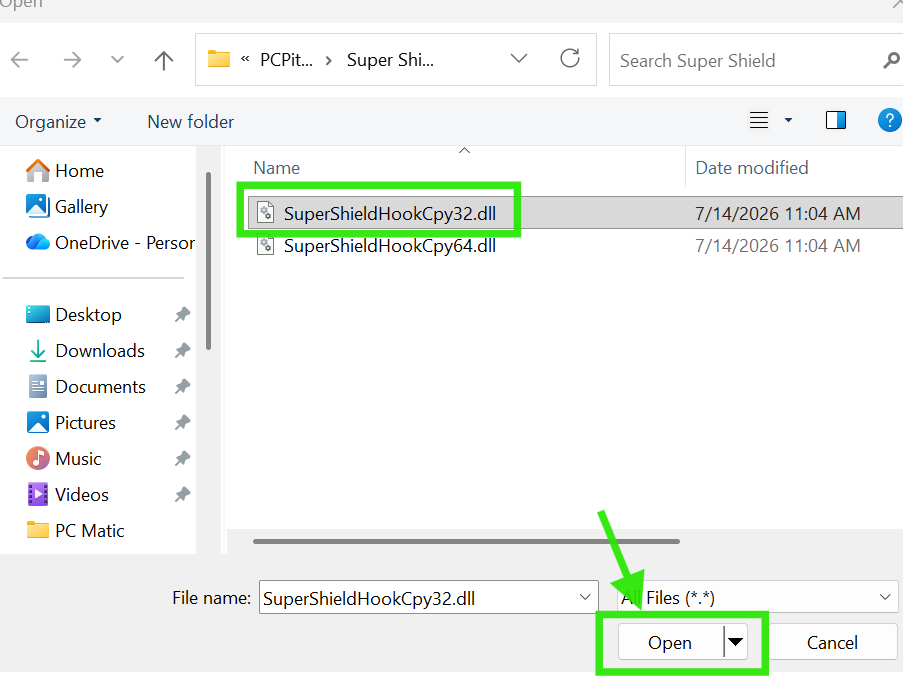
- Click the Shred File button.
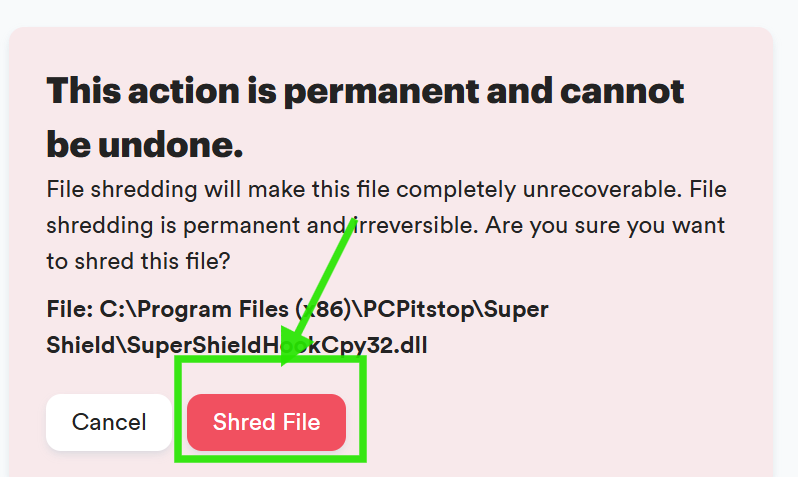
- You will see a brief shredding animation, and the task is done.
Internet Speed Test
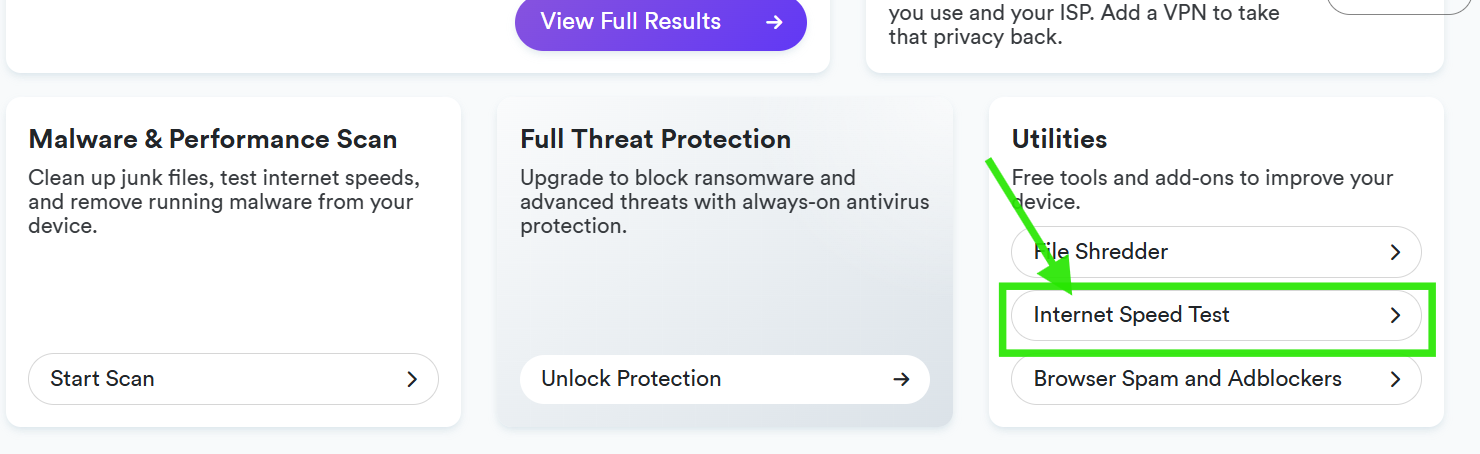
- Click the Internet Speed Test button under the Utilities heading on the PC Matic Home tab.
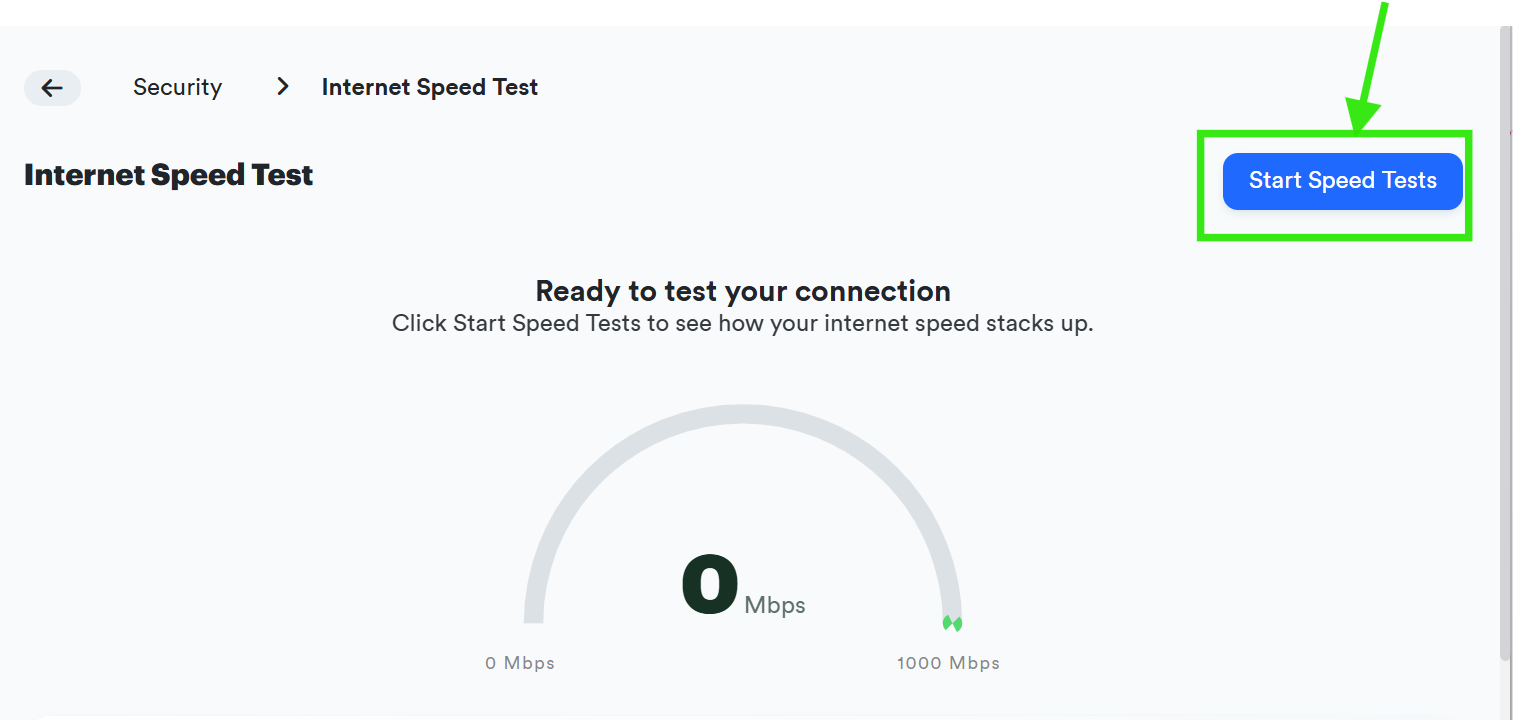
- Click the Start Speed Test button.
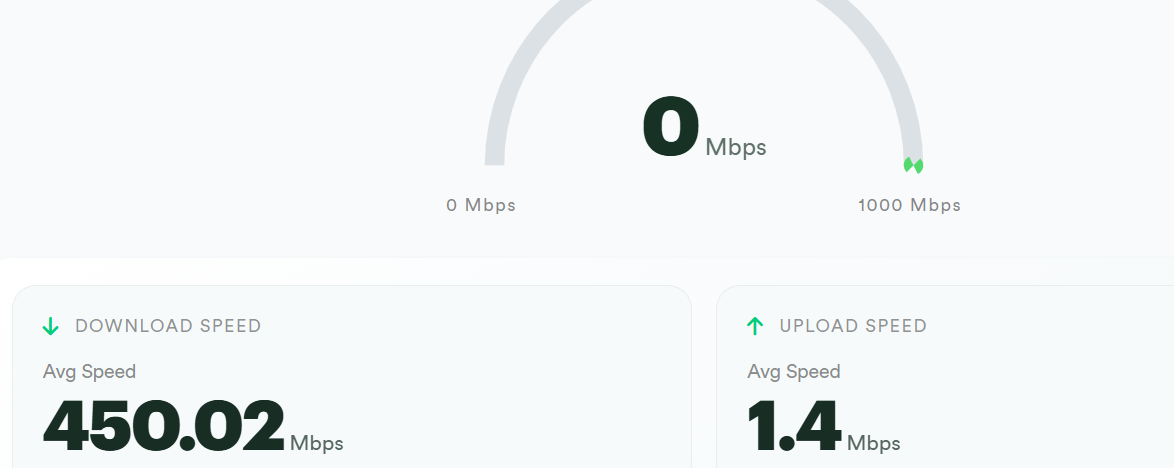
- Your test results will be shown once the test is completed.
Password Generator
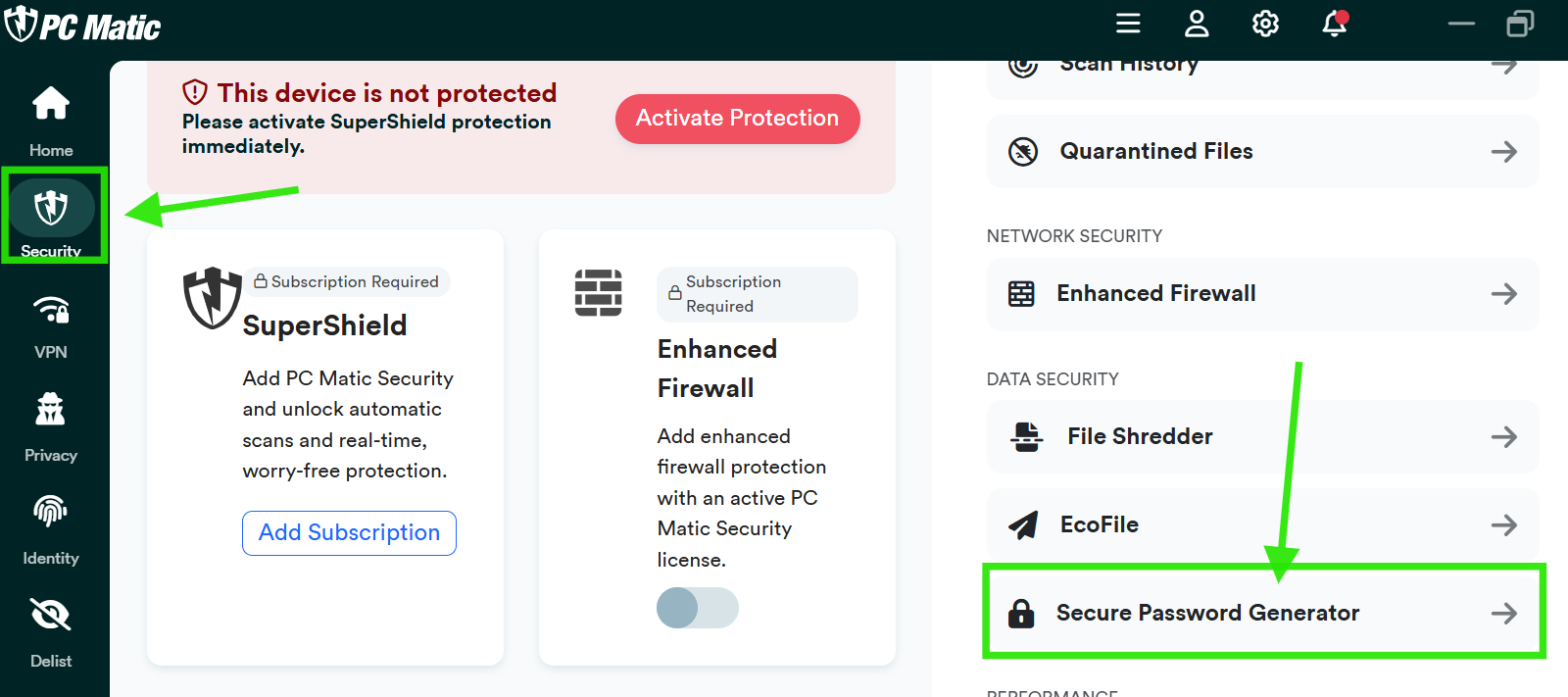
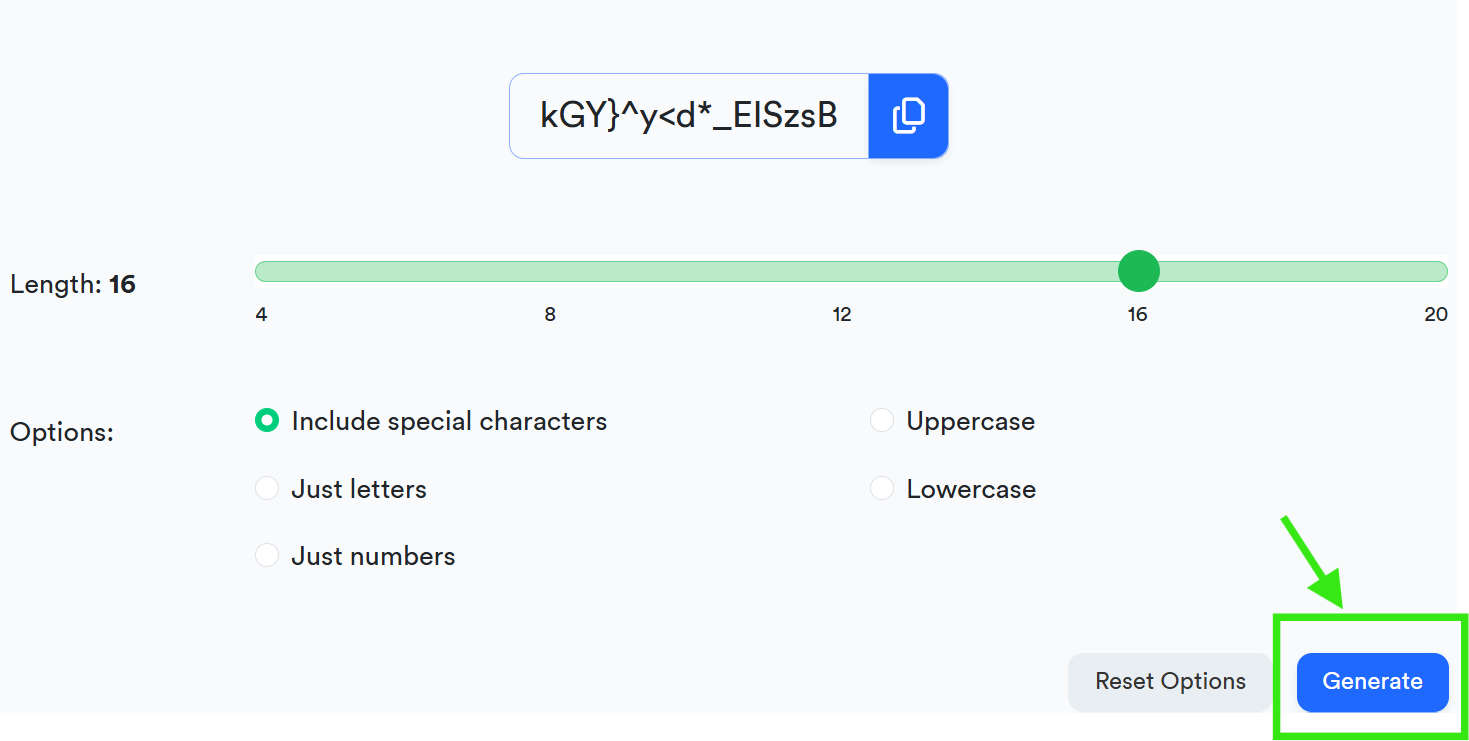
- Click the Security Tab on the PC Matic Free Tools program, then click the Secure Password Generator button.
- Choose the Character length for your password, as well as any other specifications.
- Once you have done this, click Generate.
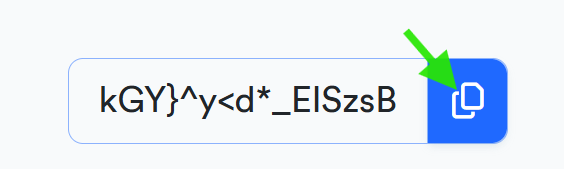
- Once the password is generated, you can copy it here:
(All Password created in this app will not be stored. You must store these passwords in another location for later use)