
Website will not connect while using VPN
There are a few reasons why a specific website may not be allowing you to connect while using a VPN. It could be related to a few simple adjustments that can be made in the VPN settings, or it could be related to the website's own security rules.
Note: Some sites such as paid streaming, trading, banking, etc. will require IP-Specific access. Since the VPN masks your IP address, it will block your access until the VPN is disabled. You will need to use VPN Split Tunneling for these types of sites. If you are experiencing the issue on multiple sites, skip right to the instructions for turning off redundant security settings.
In this article we will cover how to fix your issue using the following techniques:
- Change Your VPN Protocol
- Change Your VPN Server
- Use VPN Split Tunneling
- Turn Off Redundant Security Settings
Change your VPN Protocol
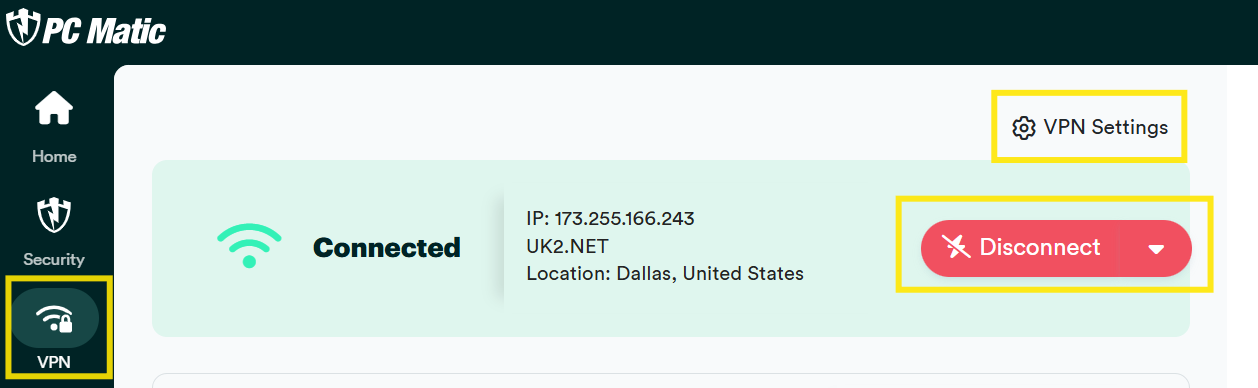
- Open PC Matic and click the VPN icon on the left menu tab. Click the Disconnect button and wait until the dashboard shows Not Connected. Then click the VPN Settings button.
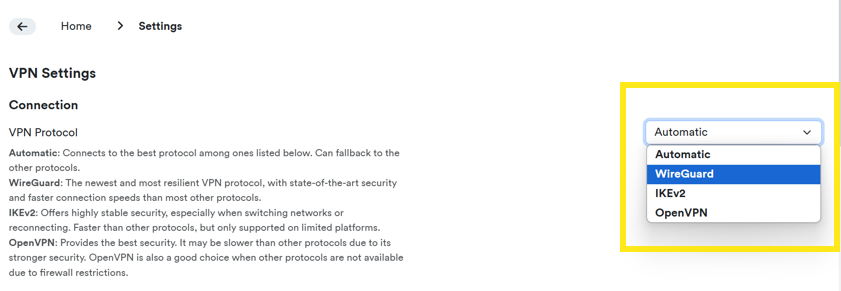
- Click the drop down box beside VPN Protocol, and choose Wireguard.
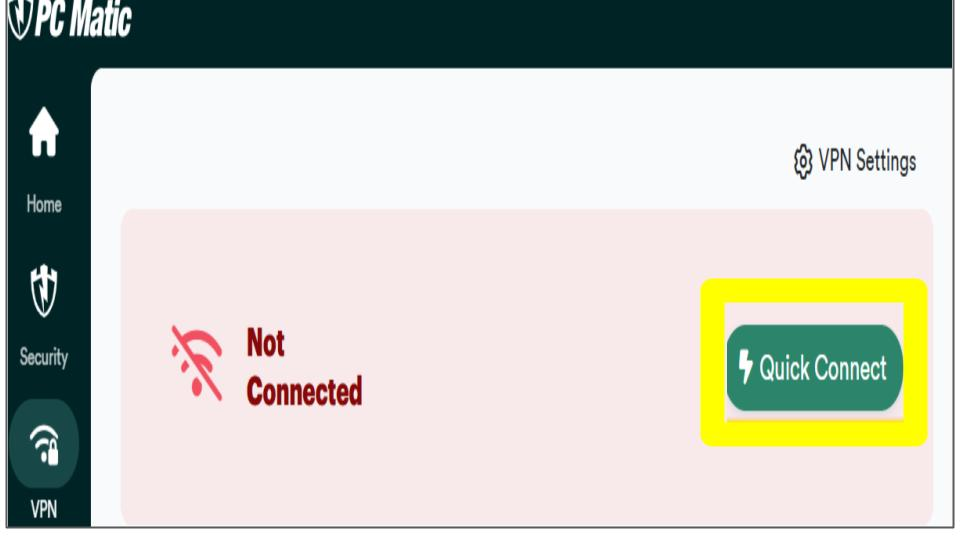
- Click the VPN tab on the left side menu bar once more and click the Connect button.
- Try the website once more. If you are still unable to connect. Repeat these steps for the other 2 remaining Protocols in the list IKEv2 and OpenVPN. If this does not work, move to the next set of instructions.
Change your VPN server
- Open PC Matic and click the VPN icon on the left menu tab. Click the Disconnect button and wait until the dashboard shows Not Connected.
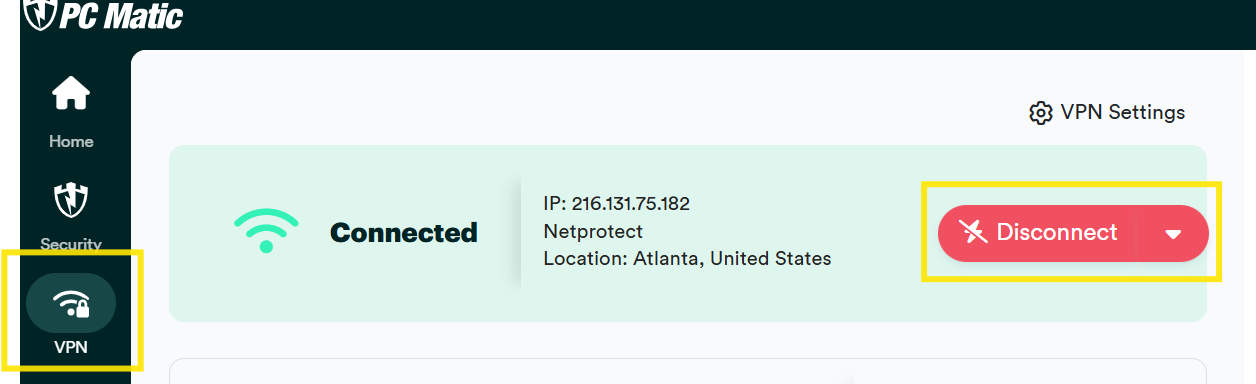
- Look at the lists of servers on the left side of the VPN Dashboard. Find the server location closest to your residence with the smallest Current Load, and press the green connect link button.
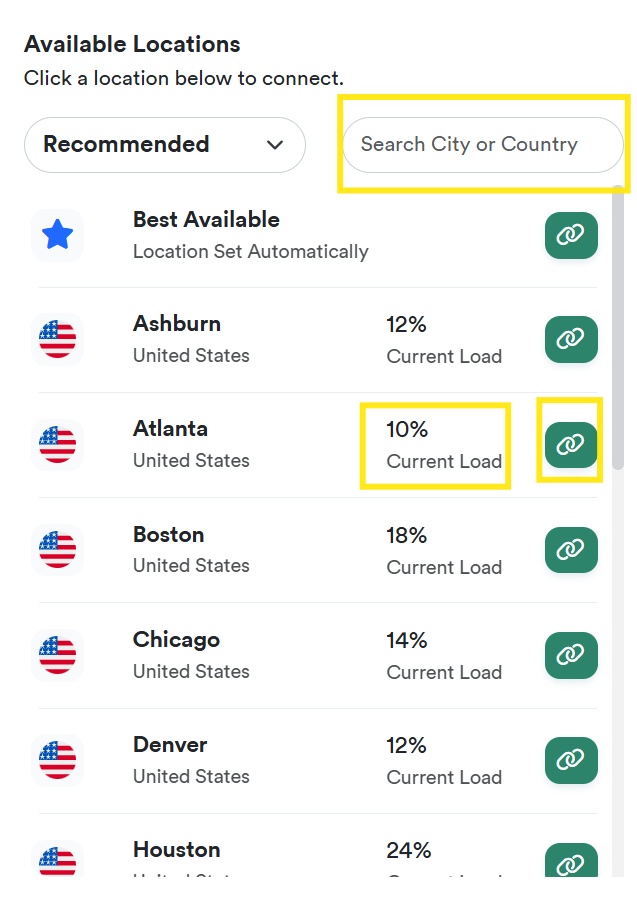
- Try the website you are having problems with once more. If you are still having issues. Disconnect the VPN, and try the next closest server to your residence. If this is still not working, move to the next set of instructions.
Use VPN Split Tunneling
We are going to cover how to use the Split Tunneling feature. Split tunneling allows you to exclude specific websites or apps from your VPN tunnel, granting them direct IP-specific access while maintaining full VPN protection for the rest of your internet activity. If the previous steps did not allow you access to the website, it is likely you need IP-specific access, and split tunneling will be the only way to achieve this.
- Open PC Matic and click the VPN icon on the left menu tab. Click the Disconnect button and wait until the dashboard shows Not Connected. Then click the VPN Settings button.
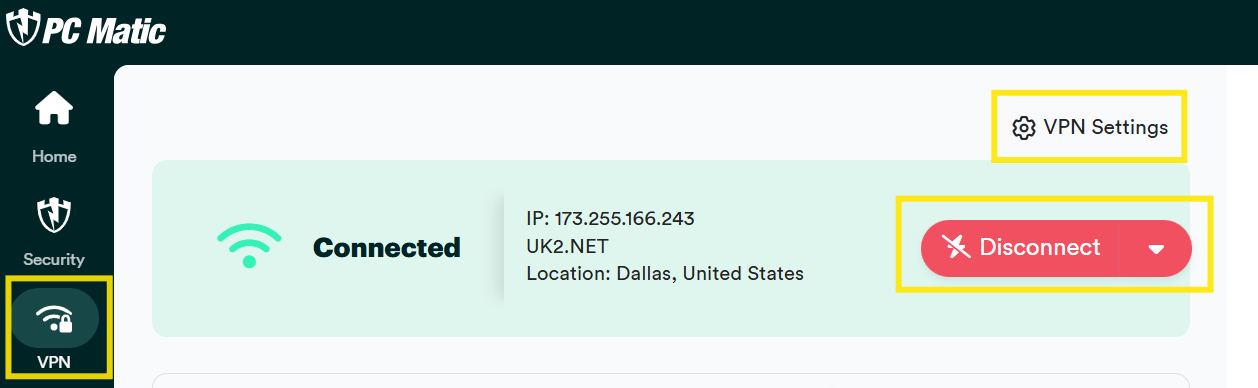
- Scroll down to the Split Tunneling setting, and move the selector switch to the on position.

-
Leave the settings window open, and navigate to the website you are having trouble with. Highlight and copy the website URL in the address bar at the top of the webpage.
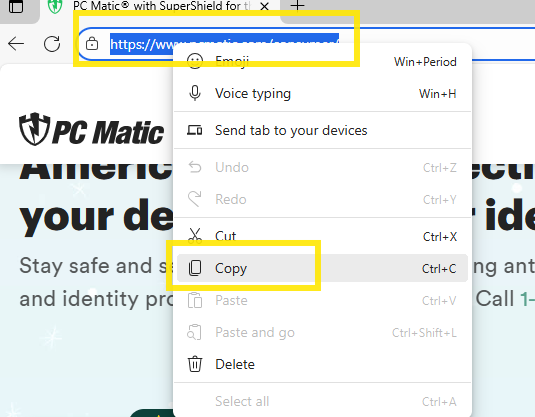
- Open the Settings page back up and ensure the Domains tab is clicked under the Split Tunneling setting. Paste the website URL you just copied into the blank space provided. Then click Add Domain.

- Place a check mark in the box to Include Subdomains.

- Try the website once more.
Turn off Redundant Security Settings
PC Matic VPN has extra security settings enabled by default for your protection. However, Microsoft has made recent changes to their built in Firewall that has added these features into their network security configurations. As a result, our built in security settings may prove to be too robust for some websites and create difficulty when trying to connect.
If you are still unable to connect to the website after adding the website in question to your split tunneling list, or if you are having issues with multiple websites, please try the steps below:
- Open the Settings page.
- Scroll down to Advanced and turn off Enable DNS leak protection, Enable IPV6 leak protection, and Threat protection.

- Restart your computer and try the website once more.