
PC Matic VPN does not automatically connect
PC Matic VPN is designed to connect as soon as you start your device. If you do not notice the VPN is connecting automatically, please check the following:
1. You will want to ensure you have the latest version of the PC Matic software. To do this, open PC Matic, and click the gear shaped Settings icon. When the Settings menu opens, click on About.

The most current release version for PC Matic will always be posted here:
https://knowledgebase.pcmatic.com/article/297-windows-release-notes
If the version you have on your device, does not match the most recent version found in the release notes, you will need to manually update using the link below:
https://files.pcpitstop.com/pcmatic6/pcmatic-install.exe
- Once you have confirmed the latest version is installed, click the VPN Tab, then click VPN Settings.

-
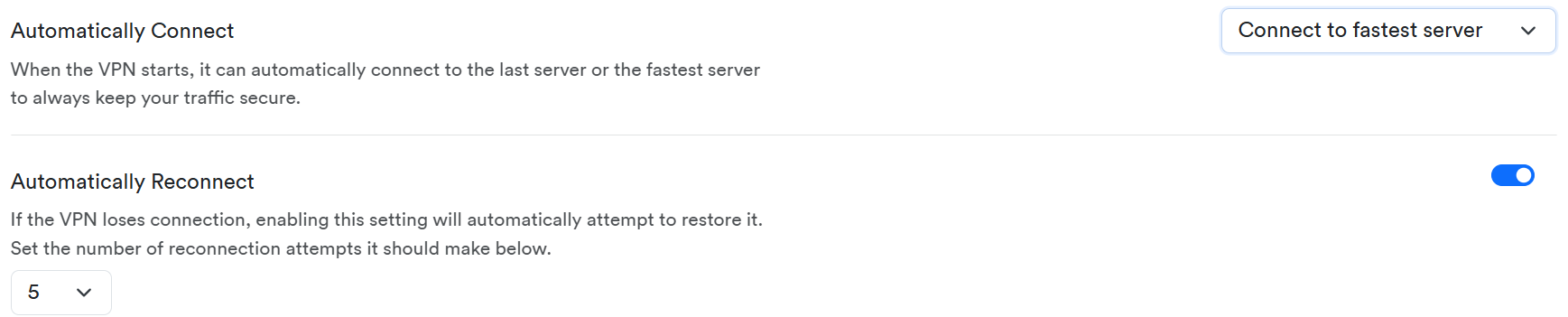
You will set the Automatically Connect and Automatically Reconnect settings as you see below:
- Click the VPN Tab on the left side of the PC Matic Window, then click the Quick Connect button.

- Wait for the VPN to connect.
- The next time you restart the device, your VPN should automatically restart when the computer is powered back on.